Build
Add a 3D model
Upload the model
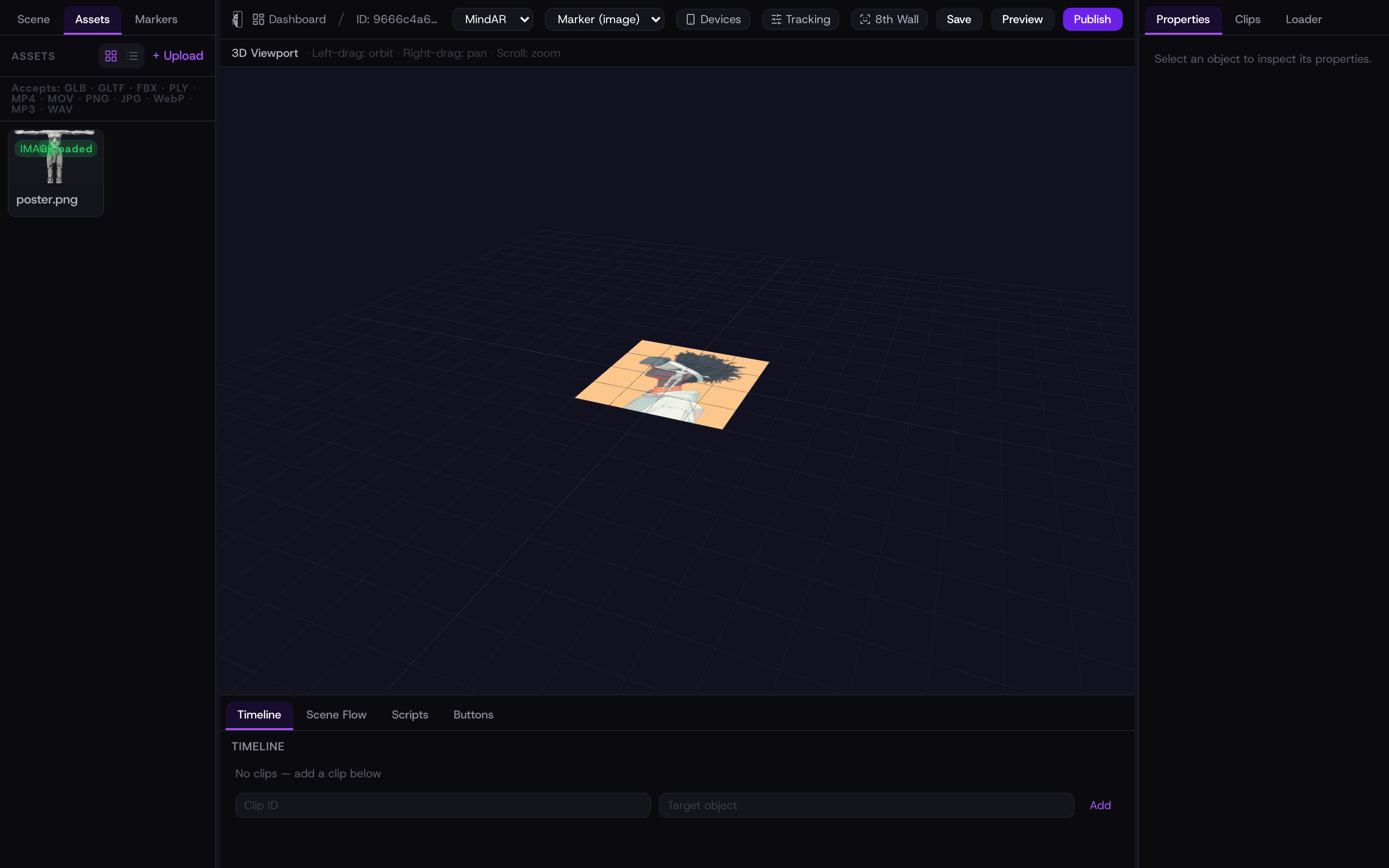
Open the Assets tab in the left panel and click + Upload. Pick one or more files from your computer:
- 1Choose your model file. Kioo accepts GLB, GLTF, FBX, and PLY.
- 2The file uploads with a progress bar; large files can take a moment.
- 3When it finishes, the model appears in your asset list with its format and size.
GLB is the most reliable format — it packs the mesh, materials, and animations into a single file. Draco-compressed geometry and KTX2 textures are supported at playback, so an optimised GLB loads faster on a phone.
Place it in the scene
Hover the asset in the list and click + Add. The model drops into the scene at a sensible default spot, just above the marker, and shows up in the 3D viewport where you can select it. Add the same asset more than once if you need several copies.
Position, rotate, scale
Select the model, then open the Properties tab in the right panel to place it precisely:
- Position
- Move the model along X, Y, and Z. Y is up, so raising Y lifts the model off the marker.
- Rotation
- Turn the model around each axis, in degrees.
- Scale
- Resize the model uniformly. Start small and grow it — models often import much larger or smaller than the marker.
- Visible
- Hide or show the object without deleting it. Useful when a script reveals it later.
Play an animation
If your GLB has animation clips baked in, open the Animation section of the Properties panel. Set an Animation Name to match a clip in the file (for example Walk, Idle, or Attack), choose a Trigger Mode — Instant Play, On Tap, or On Marker Found — and tick Loop if it should repeat. For anything more elaborate, drive the model from a script (see Add a mini-game).
No file-size cap is enforced in the editor, but keep models lean — phones render best under a few megabytes. Export from your 3D tool with Draco compression and reasonable texture sizes.