Publish
QR codes
Where to find it
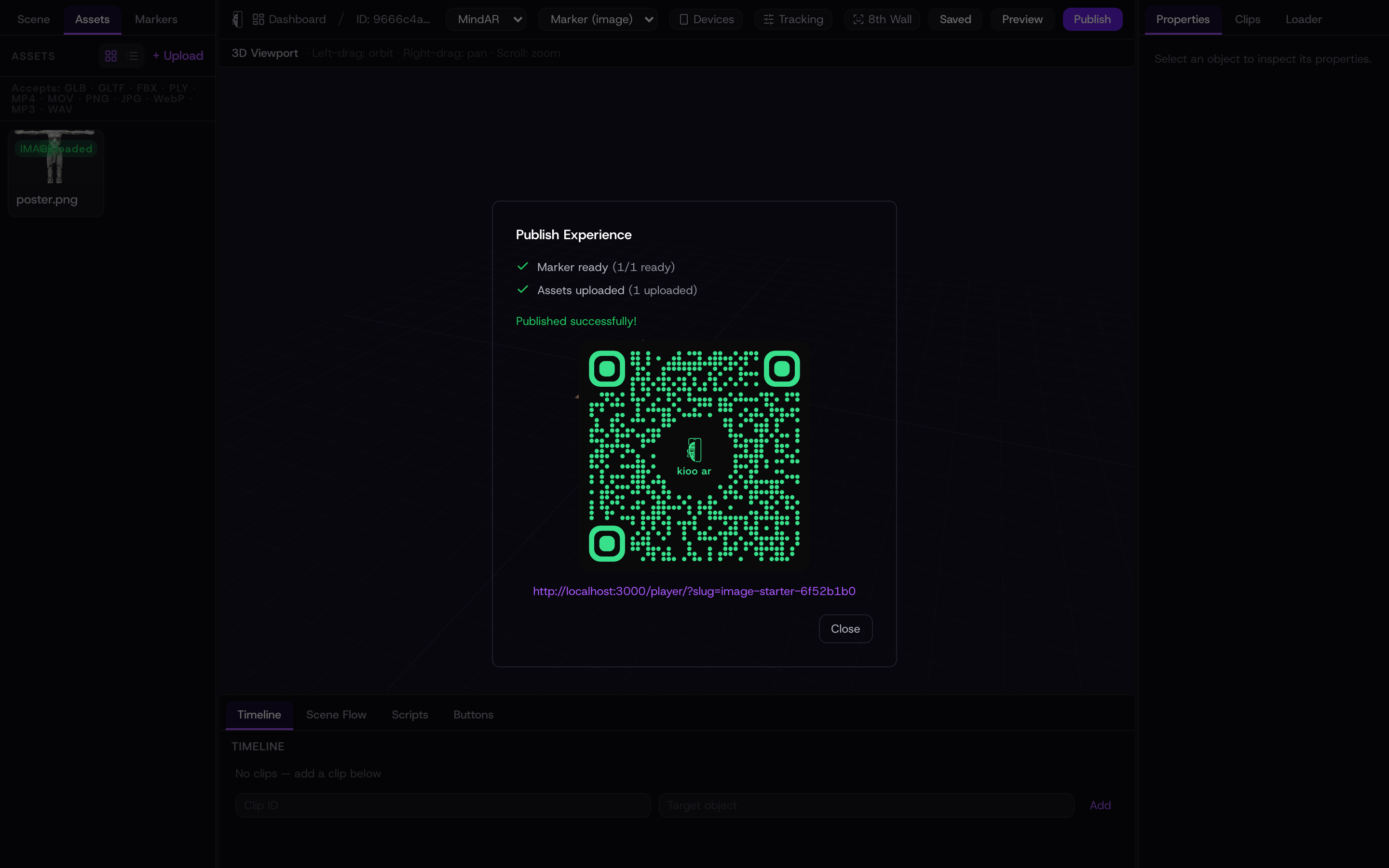
When you publish, the success dialog shows the QR code alongside the link. It encodes the same stable player URL, so the code and the link always point to the same experience. A phone’s built-in camera reads it — no separate scanner app.
Branded by default
Kioo renders a styled code — Kioo-green modules on a near-black field, rounded corners, and a small “kioo ar” badge in the centre. It uses high error correction, so the styling and the centre badge do not stop a phone from reading it.
High error correction means the code still scans even if part of it is scuffed, curved around packaging, or partly covered — roughly a third of the code can be damaged and it still resolves.
Printing tips
Get reliable scans in the real world:
- 1Print it large enough — aim for at least 2 cm square up close, bigger for posters and signage seen from a distance.
- 2Keep quiet space around it — leave a clear margin so nothing crowds the code.
- 3Keep contrast high — print on a light, matte surface; avoid glossy stock that reflects glare into the camera.
- 4Add a short call to action next to it, like “Scan to see it in AR”, so people know what it does.
The link never changes, so a QR you printed months ago keeps working. Edit and re-publish as often as you like — existing codes always open the latest version.