Build
Tracking & smoothing
Pick how the experience anchors to the real world, and fine-tune how steadily your model sits once it is tracking.
Choose an AR mode
Use the AR mode dropdown in the toolbar to pick how the experience anchors:
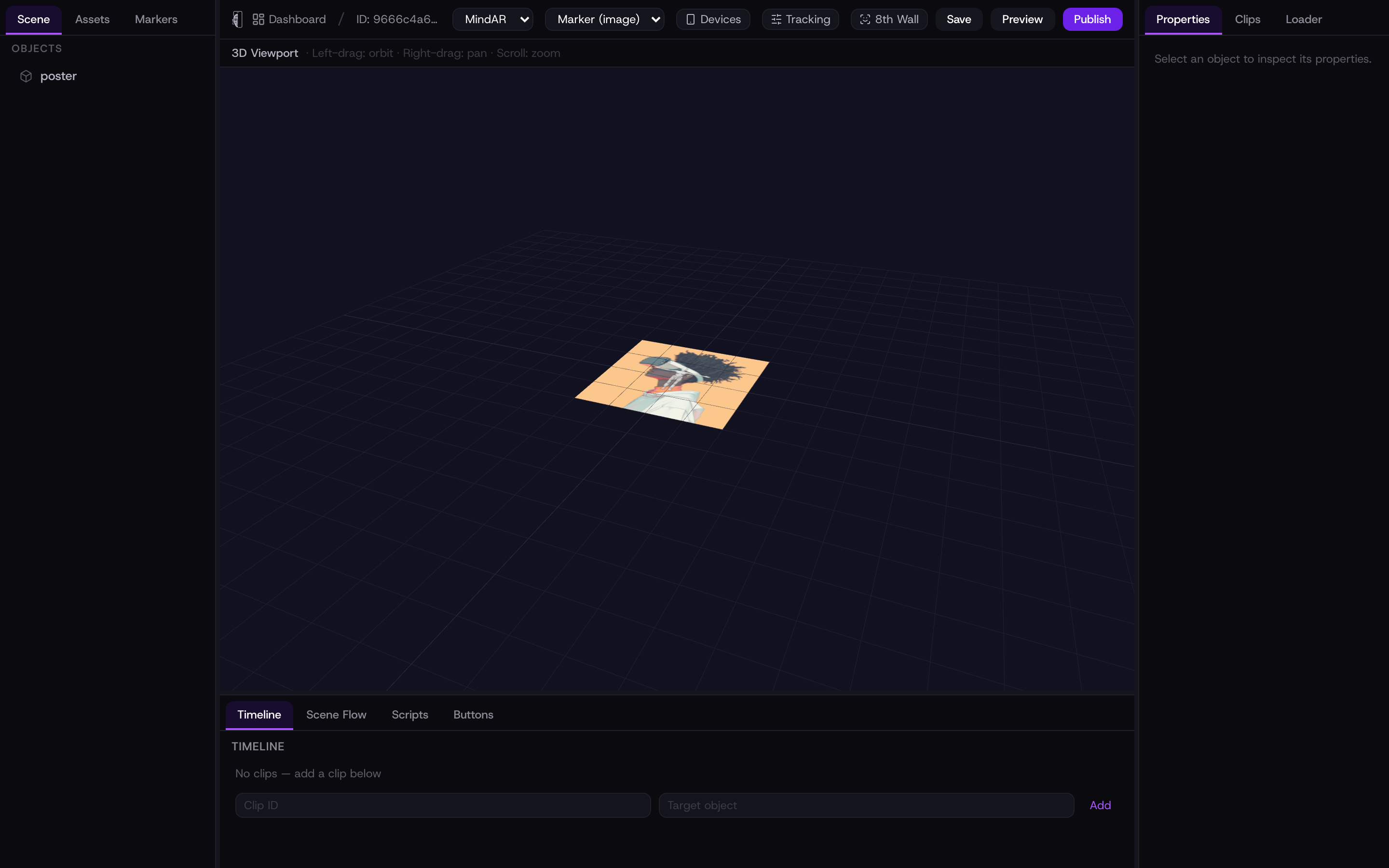
- Marker (image)
- Content appears on a printed or on-screen image target. This is the mode that uses marker uploads and QR-linked print.
- World (surface)
- Content is placed on a real-world surface using WebXR — no marker needed.
- Face (head)
- Content attaches to the viewer’s face and head — filters, masks, try-ons. Use the Face regions button to assign assets to parts of the face.
- Location (GPS)
- Content appears at real-world GPS coordinates. Use Set location to place it on a map, or capture your current position.
In Marker mode you can choose the image-tracking engine — MindAR or 8th Wall. The other modes show which engine they use (WebXR for world, MindAR Face, GPS for location). Marker mode is the one whose link you print as a QR code.
Single vs multi-target
Open the Tracking popover in the toolbar (Marker mode) and pick a tracking type:
- Single target
- One marker image. The simplest and steadiest setup.
- Multi-target
- Several marker images in one experience; whichever is seen shows its content.
- Multi-tracking
- Track more than one marker at the same time.
Single target uses exactly one marker. To upload more than one marker image, switch to Multi-target first.
Smooth out the jitter
The same Tracking popover has tuning fields. Every one is optional — leave it blank to use the default — and small changes go a long way:
- Smoothing
- Higher is steadier but adds a little lag as the model catches up to the marker.
- Filter min cutoff
- Lower reduces jitter when the marker is still. Adjust in tiny steps.
- Filter beta
- How quickly the model responds to fast motion.
- Miss tolerance
- How many frames the model is held after the marker is lost — prevents flicker.
- Warmup tolerance
- How many frames to confirm before the experience counts the marker as found.
- Freeze on card
- Locks the model steady for a marker that sits flat on a printed card. Best for a card that does not move.